DaySteps Routines
A clear next step for the parts of the day that repeat.
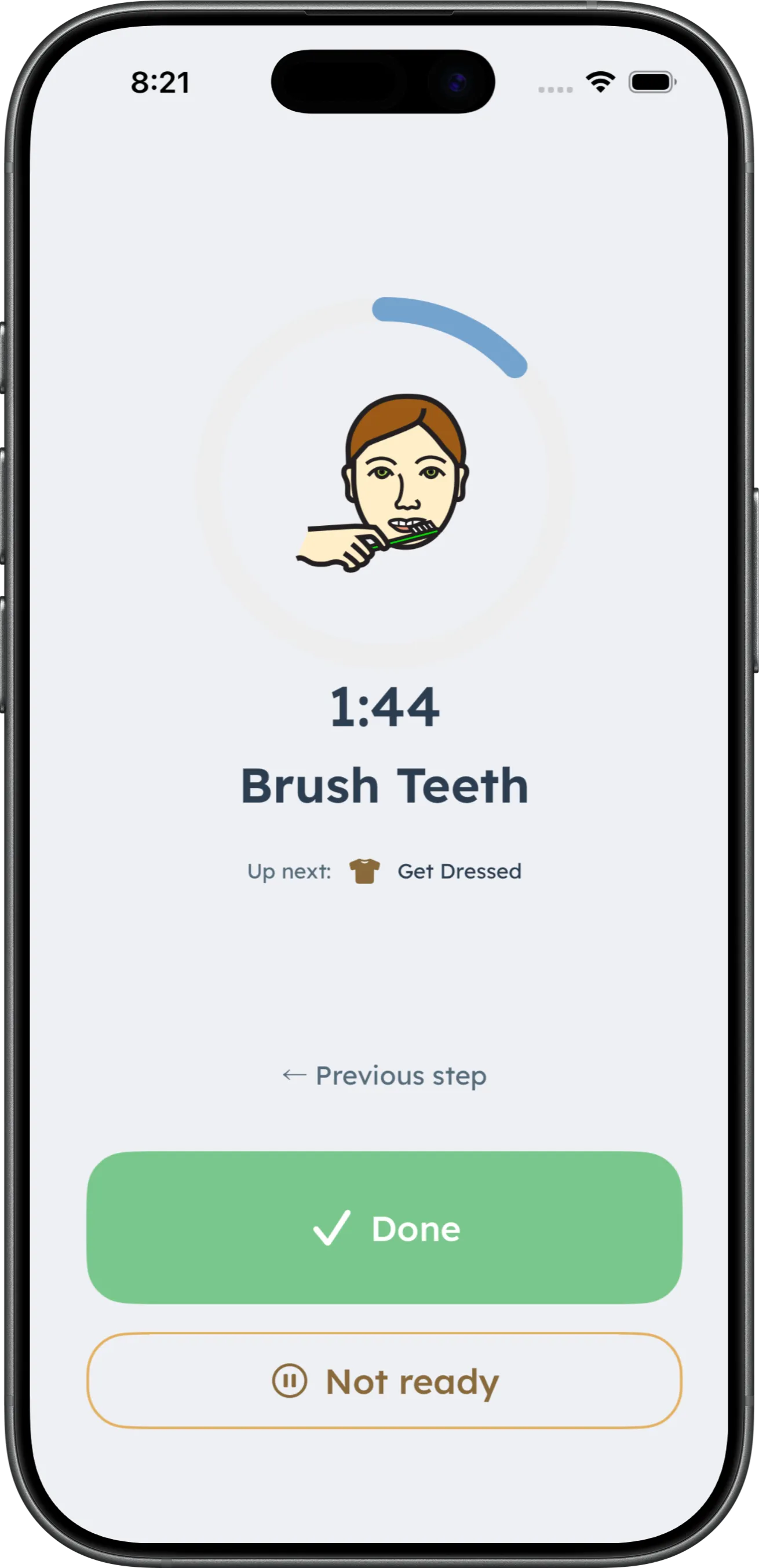
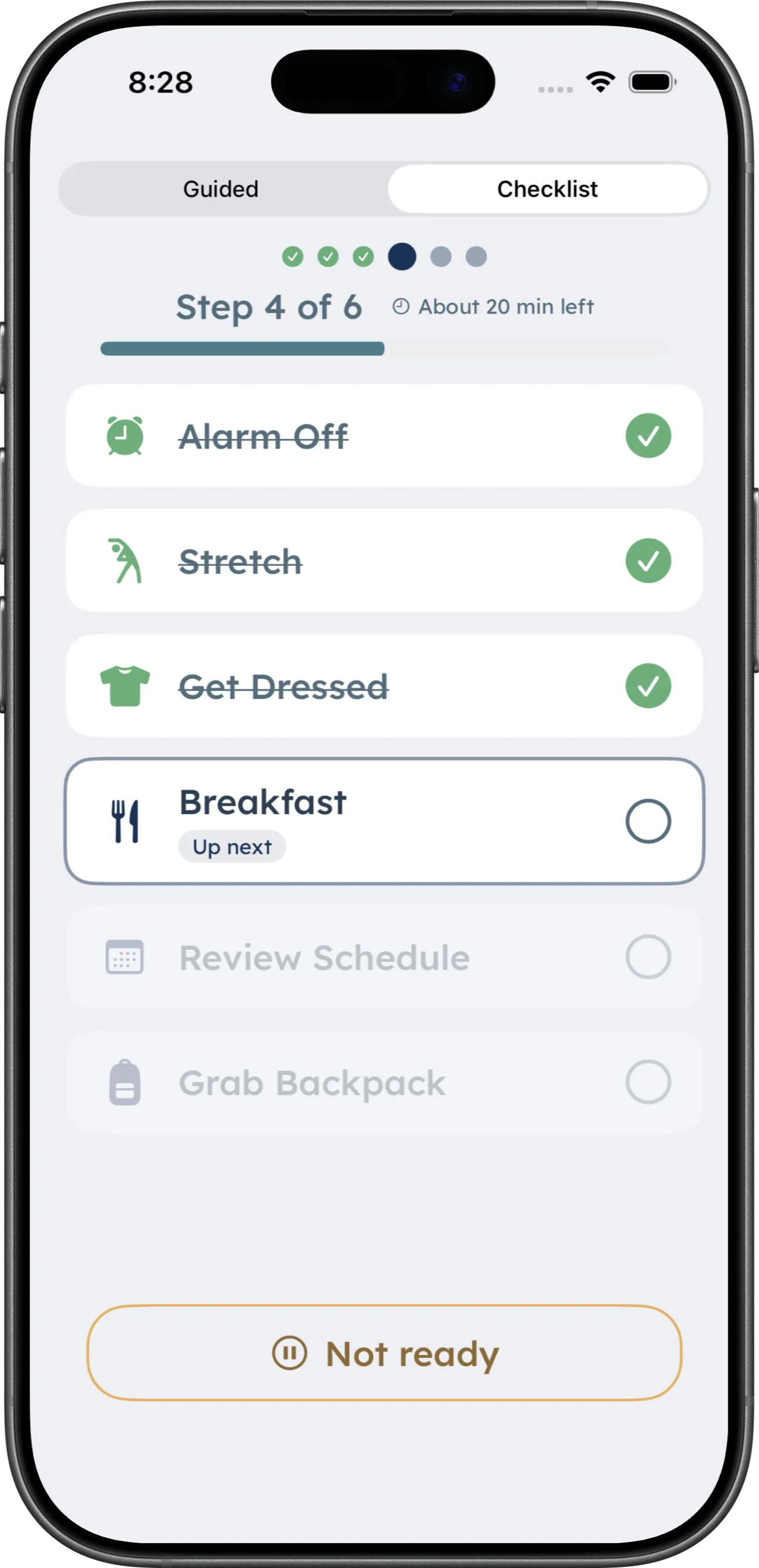
Build the steps, timing, icons, and schedule once. Choose whether the routine shows one guided step, a preview of what comes next, or the option to use Guided or Checklist.

Build once
The routine does not have to live in your head.
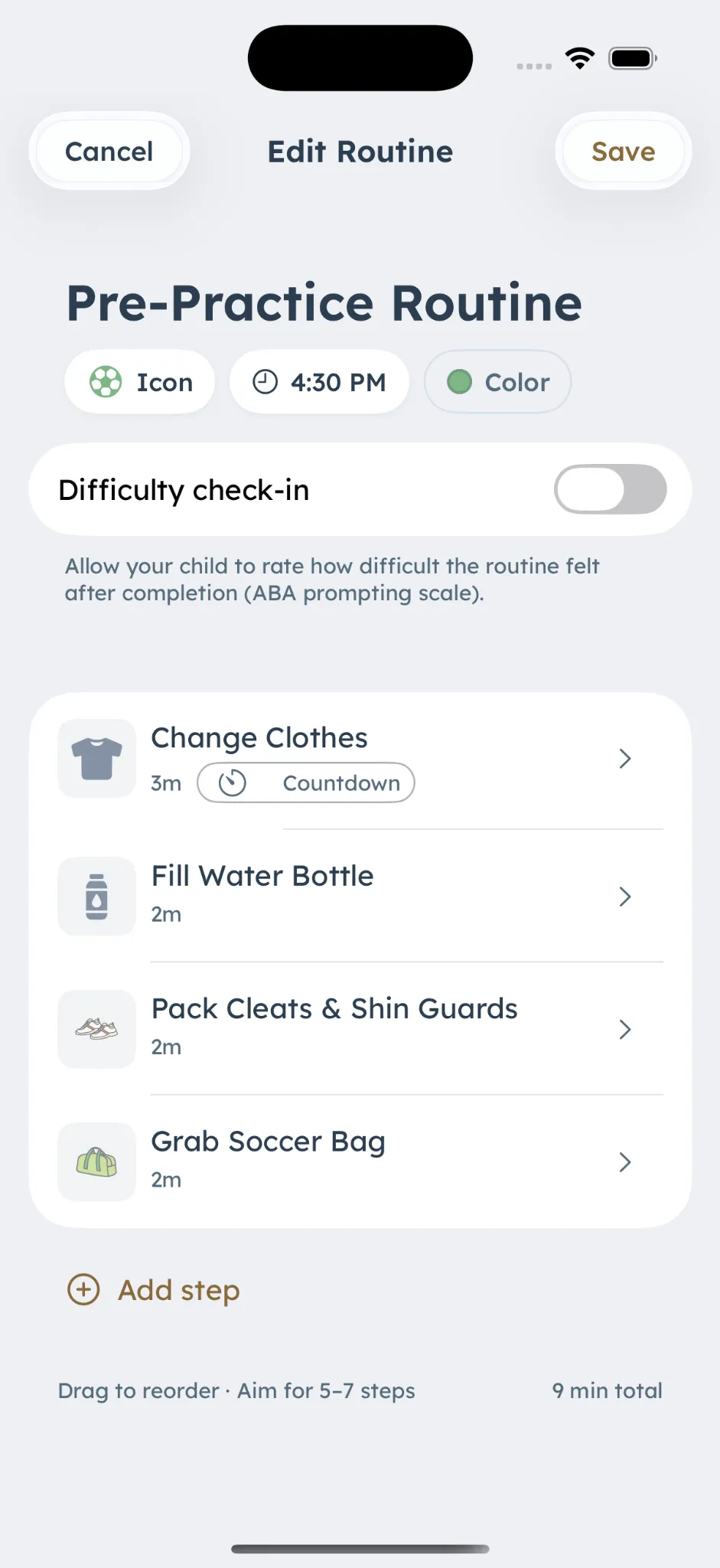
Set the sequence once, then bring it back when the day calls for it. DaySteps keeps the order, timing, and visual cues visible.
-
Build the sequence
Add the steps in the order they happen, and drag to reorder them.
-
Choose recognizable visuals
Give each step an icon that makes sense for the routine.
-
Set the timing and schedule
Add the timing and schedule that fit the day.
Runner level
One routine. Three levels of support.
The parent sets the Runner level for a child profile. DaySteps never changes it automatically.
-
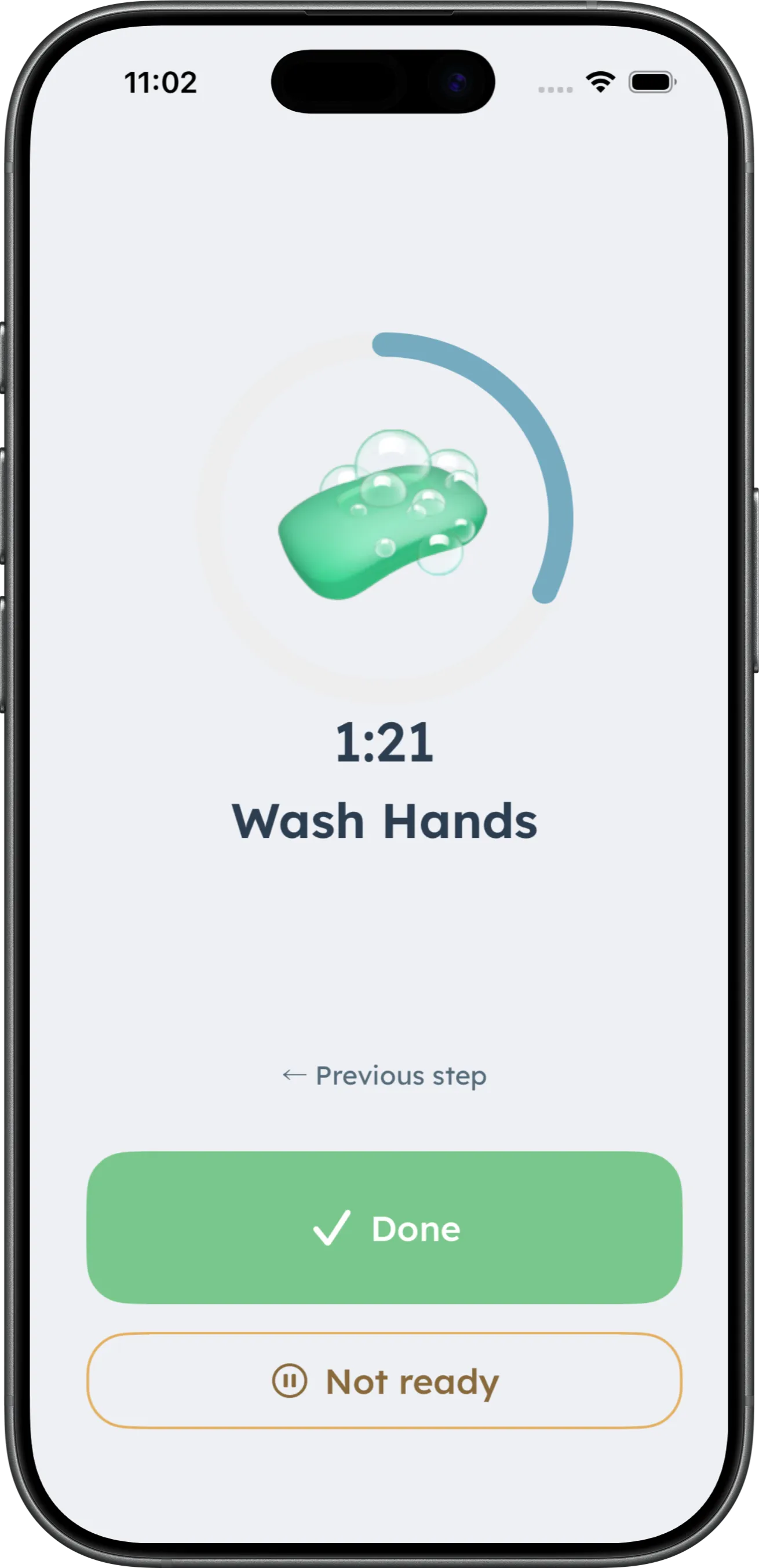
Guided
Keep the current step primary and move through the routine one step at a time.
-
Guided with Preview
Keep the current step in focus while showing what comes next as a quieter preview.
-
Child’s Choice
Make Guided and Checklist available, then let the child choose how to move through the routine.
Time support
Make time visible only when it helps.
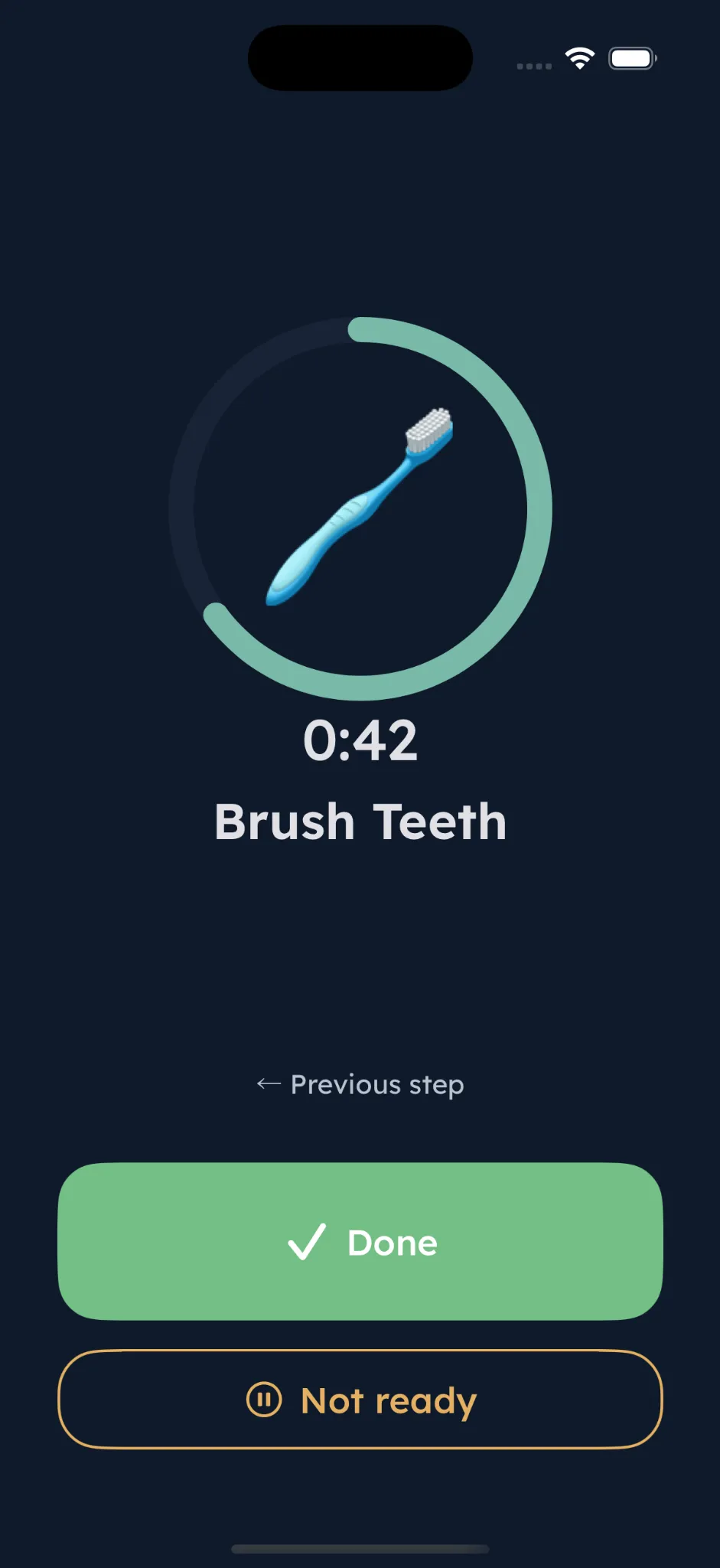
A visible countdown can be enabled step by step. It is off by default, so the adult decides where time support belongs.
-
Set a duration for the step
Give a step a length in the builder, or leave it without one.
-
Show a calm circular countdown
The time remaining sits with the step rather than over the whole routine.
-
Let time run out quietly
Reaching zero brings no alarm and no failure state.
Calm by design
No points. No streaks.
Nothing to lose on a hard day.
An incomplete routine is not treated as failure. There are no points to lose, streaks to protect, or negative sounds when a routine stops. Support never changes on its own.
Build the routine once. Make the next step clear.
Download DaySteps free on iPhone and iPad.